
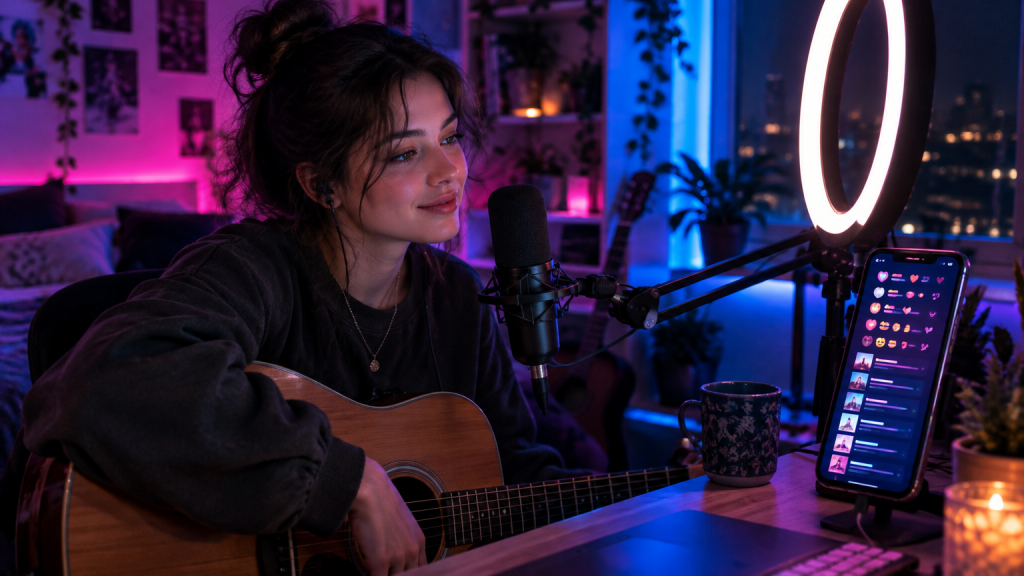
Scroll through TikTok LIVE on any given evening and you will find bedroom guitarists taking requests, DJs testing new edits and singers chatting with fans between songs. What many of these streams have in common is not visible at first glance. Behind the camera, a growing number of creators run extra software that turns a simple broadcast into something closer to an interactive show.
One of the most popular names in that space is TikFinity, a free tool that connects to a TikTok LIVE stream and reacts to what viewers do in real time. It has built one of the larger communities around TikTok streaming.
What the Tool Actually Does
At its core, the software listens to events in a live stream. When a viewer sends one of the platform’s virtual gifts, follows, likes or types a specific command in the chat, the tool can trigger a response. That might be a sound effect, an animation on screen, a message read aloud by text-to-speech or a progress bar moving closer to a goal.
For musicians, one feature stands out: song requests through Spotify. Viewers can suggest tracks directly in the chat, and the queue updates on its own. It turns a passive audience into active participants who help shape the setlist.
Games Your Chat Can Play
Beyond alerts and overlays, the tool offers small games that run inside a stream. Spinning wheels, challenges and subathon timers give viewers a reason to stay and interact. Some creators go further and link the tool to games such as Minecraft, Roblox or GTA 5, where gifts from the audience can trigger events in the game itself, depending on the game and how the streamer sets it up.
A points and level system rewards regular viewers, which helps build a loyal community. For smaller creators in particular, these mechanics can make the difference between a stream that feels empty and one where the chat keeps moving.
Built to Fit Into Existing Setups
Part of the appeal is how easily the software slots into tools creators already use. It works withTikTok LIVE Studio as well as OBS Studio and Streamlabs, so overlays can be added as a simple browser source. Integrations with Streamer.bot, Stream Deck and Voicemod open up further options, from switching scenes to letting viewers change the streamer’s voice.
There is a browser version, a Windows app and a mobile app focused on sound alerts and text-to-speech. That makes it usable both for creators streaming from a full desk setup and for those going live straight from their phone.
Free to Start, with Room to Grow
The basic version is free and covers alerts, games, chat commands and text-to-speech with fair usage limits. A paid Pro tier raises those limits and adds extras such as AI voices and premium overlays. For most people who are just getting started, the free plan is more than enough to experiment with.
Anyone new to the platform will find that the technical side is only half the story. Lighting, sound and a clear idea of what the stream is about matter just as much, and a good overview of what you need to start streaming is a sensible first step before adding extra tools.
Why It Matters for Artists
TikTok has become one of the most important places for new music to break through. Live streams give artists a direct line to fans that a short clip cannot offer. Tools that make those streams more interactive help turn casual viewers into listeners who come back, buy tickets and share songs.
The software itself is independent and not affiliated with TikTok. Its popularity shows how much creators value simple ways to make live content feel personal, playful and a little less one-sided.
Getting Started without Overdoing It
The biggest mistake new users make is switching on every feature at once. A stream where every like triggers a sound and every gift sets off three animations quickly becomes noisy, both for viewers and for the creator trying to perform. It usually works better to start with two or three alerts, one simple goal and perhaps a single game, then add more once it is clear what the audience responds to.
Testing before going live also pays off. Alerts and overlays can usually be tried out in advance, which helps catch volume levels that are too loud or overlays that cover the face or the instrument. Musicians in particular should check that alert sounds do not clash with their own mix.
Finally, interaction works best when it feels genuine. Thanking viewers by name, reacting to their song requests and explaining how the games work keeps the focus on the people in the chat rather than on the technology. The tool provides the framework, but the atmosphere still comes from the creator.