

No one ever sits and thinks about audio formats until you are sharing a WAV recording and see how much space it is eating up. FLAC isn’t much better in terms of size. Both keep the original sound intact, which is great right up until you need to send the file to someone.
So I started looking at MP3s. They’re a fraction of the size, easy to share, and play on just about anything. Along the way I found Convertio’s wav to mp3 converter online, which shrinks large WAV files into MP3s right in your browser, with nothing to install.
Smaller files have to give up something, though. How much quality do you actually lose when you convert, and when is MP3 the wrong pick? That’s what this post digs into.
Why Convert WAV or FLAC Files to MP3?
WAV and FLAC are great for keeping every bit of the original audio, but that quality costs storage. Convertio lets you convert FLAC to MP3 directly in your browser, giving you a smaller audio file that’s easier to store and share.
- Smaller files: MP3s are usually 4 to 11 times smaller than CD-quality WAV files, depending on the bitrate you pick. That three-minute, 30 MB WAV drops to about 7 MB at 320 kbps.
- Wider compatibility: MP3 plays on almost every phone, computer, car stereo, and audio app.
- Easier sharing: Smaller files upload faster and fit within email and messaging app size limits.
How Online Audio Conversion Works
An online converter does the work on its own servers, so all you need is a browser. The process follows the same four steps on most sites:
- Upload your file: Pick a WAV, FLAC, or other supported audio file from your device.
- Select the output format: Choose MP3 or whichever format you need.
- Start the conversion: The site processes the audio and creates the new file.
- Download the result: Save the converted file back to your device.
This is handy for occasional jobs because there’s no software to install or keep updated. The tradeoff is upload time. A long WAV file can take a while on a slow connection, so it helps to start with a stable network.
Convertio’s free plan doesn’t require an account, and you can add several files before clicking Convert, which saves time with a folder of recordings.
How to Convert WAV to MP3 With Convertio
Convertio’s wav to mp3 converter online converts WAV audio files into MP3 format directly through your browser.
Here’s how to use it.
1. Upload the WAV File
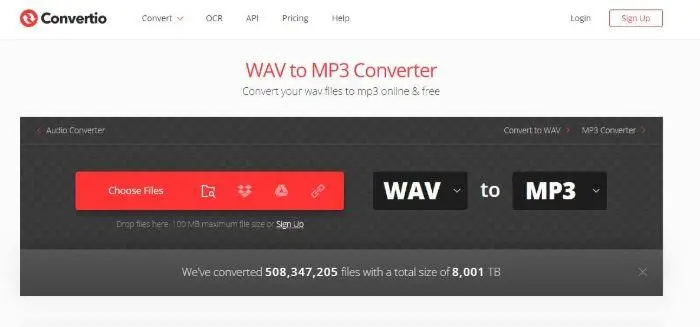
Open Convertio’s WAV to MP3 page and click Choose Files. Select the WAV recording from your computer. You can also pull files from Dropbox or Google Drive, or paste a link.
Let the upload finish completely before moving on.
2. Choose MP3 as the Output Format
The dedicated WAV to MP3 page has MP3 selected already, but it’s worth a quick glance to confirm.
If you want control over file size or sound quality, open the settings icon next to the file to adjust options like bitrate before converting.
3. Convert and Download the MP3
Click Convert. When processing finishes, click Download to save the MP3.
Before you delete anything, open the new file and listen to a section you know well. A familiar part of a song makes it much easier to notice if something sounds off.
How to Convert FLAC to MP3 With Convertio
Convertio also lets you convert flac to mp3 when you want a smaller audio file for everyday listening or sharing.
The FLAC steps are nearly identical, which makes sense since both are high-quality source formats heading into the same smaller output.
1. Upload the FLAC Audio
Go to Convertio’s FLAC to MP3 page, click Choose Files, and select your FLAC file.
If you have several tracks with similar names, double-check that you’ve picked the right one. Album rips often have near-identical filenames.
2. Select MP3 as the Output
MP3 should already be set as the destination format on the FLAC to MP3 page.
This is the step to review your bitrate. MP3 uses lossy compression, which means some audio information is permanently removed to make the file smaller. A higher bitrate removes less.
3. Complete the Conversion
Click Convert and wait for processing to finish, then download the MP3.
Play a short section to check that it sounds right before moving or deleting the original FLAC.
WAV vs. FLAC vs. MP3: What Is the Difference?
The three formats differ mainly in how they compress sound and how much of the original recording survives.
| Format | Main characteristic | Typical file size | Best suited for |
|---|---|---|---|
| WAV | Usually uncompressed audio | Large | Audio editing and archiving |
| FLAC | Lossless compression | Medium to large | High-quality audio storage |
| MP3 | Lossy compression | Small | Everyday listening and sharing |
WAV usually stores audio with no compression, which is why the files are so big. FLAC compresses the audio but in a lossless way, so the original data can be rebuilt exactly when you play it back. Think of it like a ZIP file for sound.
MP3 goes further by discarding some audio information altogether. That’s what makes the files small and easy to share, and it’s also why an MP3 can never hold every detail of the WAV or FLAC it came from. Actual sizes vary with recording length, settings, and the source material.
Which Audio Format Should You Choose?
The right format depends on what you’ll do with the file next.
- Choose WAV for editing: If you’re recording or editing audio, WAV keeps everything intact while you work.
- Choose FLAC for quality and storage: FLAC keeps the full original quality in noticeably less space than WAV, which makes it a good format for a music archive.
- Choose MP3 for everyday use: For playlists, podcasts, voice notes, and anything you plan to send, MP3 is the practical pick.
A simple way to decide: keep a lossless master (WAV or FLAC) and make MP3 copies whenever you need to share or play something on the go.
Does Converting WAV or FLAC to MP3 Reduce Audio Quality?
Yes. MP3 is a lossy format, so some audio information is always removed during conversion.
WAV and FLAC both keep the complete original audio. MP3 shrinks the file by permanently dropping the sound details its encoder judges least audible. Whether you’ll actually hear a difference depends on the recording, your headphones or speakers, where you’re listening, and the bitrate you choose.
Bitrate is the amount of data used to represent each second of sound. Here’s what the common MP3 settings look like for a stereo file:
| MP3 Bitrate | What to Expect | Size per Minute (Stereo) |
|---|---|---|
| 128 kbps | Smaller files with more noticeable quality loss possible | About 0.96 MB |
| 192 kbps | A middle option balancing file size and sound quality | About 1.44 MB |
| 256 kbps | Higher quality with a larger file size | About 1.92 MB |
| 320 kbps | High-quality MP3 encoding with larger files | About 2.4 MB |
For music where sound quality matters, 256 or 320 kbps is a sensible starting point. Speech is much more forgiving, so voice memos, lectures, and interviews usually sound fine at lower bitrates.
Common Audio Conversion Problems and How to Avoid Them
Most failed or odd-sounding conversions come down to file size, settings, or a shaky internet connection.
1. The File Is Too Large
Online converters set upload limits that vary by service and plan, and long WAV files hit those limits faster than anything else.
What to do:
- Check Convertio’s current file-size limit before uploading.
- Trim silence or sections you don’t need from the recording.
- Use desktop conversion software for files that go over the limit.
2. The Converted Audio Sounds Different
Because MP3 removes some audio data, the converted file may not sound exactly like the original.
What to do:
- Check which bitrate was used for the conversion.
- Convert again from the original at 256 or 320 kbps if quality matters.
- Compare both versions on the same headphones or speakers so you’re judging fairly.
3. The Conversion Does Not Complete
An interrupted upload, an unstable connection, or a damaged source file can stop the conversion partway.
What to do:
- Make sure the original file plays correctly on your device.
- Refresh the page and upload the file again.
- Switch to a more stable connection if you can.
- Try a different browser if the problem keeps happening.
4. The Downloaded File Will Not Play
An MP3 may refuse to open if the download was cut short or the wrong format was selected.
What to do:
- Confirm that MP3 was selected as the output format.
- Check that the file ends in .mp3.
- Try opening it in a different media player.
- Download it again if the file size looks unusually small.
Is Online Audio Conversion Safe?
For everyday music and non-sensitive recordings, online conversion is generally fine as long as you’re on the official site and you know how long your files are kept.
When you upload audio to a browser-based converter, the service processes and temporarily stores it on its servers. Convertio states that uploaded files are deleted after conversion and converted files are removed within 24 hours. Keep in mind that this is the company’s own stated policy, not an independent security audit.
A few precautions are worth taking:
- Read the privacy policy: Check how the service stores and deletes your files.
- Be careful with sensitive audio: Confidential calls, business meetings, or recordings with personal details deserve extra thought before uploading.
- Use the official website: Look-alike converter sites exist, so check the URL before uploading anything.
- Go offline for private files: A trusted desktop converter keeps the recording on your own device the whole time.
What Other Files Can Convertio Convert?
Audio is just one part of what Convertio handles. Supported categories include:
- Images: JPG, PNG, WebP, and other common formats
- Documents: Formats such as DOCX and TXT
- PDFs: Conversion to editable documents or images
- Videos: Formats such as MP4 and AVI
- Audio: MP3, WAV, FLAC, AAC, and more
The exact options depend on the source format and the output you choose.
Frequently Asked Questions
Can I Convert WAV to MP3 Online Without Installing Software?
Yes. Browser-based tools such as Convertio let you upload a WAV file, select MP3, and download the converted audio without installing additional software.
Can I Convert FLAC to MP3 Online?
Yes. Convertio supports FLAC to MP3 conversion through your browser. Upload the FLAC file, choose MP3 as the output format, and download the result.
Does Converting WAV to MP3 Reduce File Size?
Yes, usually. MP3 uses lossy compression to create smaller files than uncompressed WAV. The final size depends on the recording length and selected bitrate.
Does FLAC to MP3 Conversion Affect Sound Quality?
Yes. FLAC preserves the original audio data, while MP3 removes some information during compression. Higher MP3 bitrates generally help reduce noticeable quality loss.
Which Is Better for Storage, FLAC or MP3?
MP3 is better when saving storage space is your priority. FLAC is preferable when you want to preserve the original audio quality while using less space than uncompressed WAV.
Can I Convert Multiple WAV or FLAC Files to MP3 at Once?
Yes. Audio converters with batch processing let you convert multiple files together. This is useful for music albums or recording folders, although file limits vary between services.
Conclusion
The next time an audio file takes up too much space or refuses to play on your device, you’ll know what to do!
I’d suggest keeping your original recordings somewhere safe before converting them. That way, you can always return to the source file if your needs change.
Ready to make your audio files easier to manage? Try Convertio for your next WAV or FLAC conversion and choose the format that works best for you.